What you will learn
Turning a character into 3D means converting a flat illustration into a three-dimensional 3D model (a digital object you can view from any angle). Here is the conclusion up front: in 2026, if you have a single front-facing illustration, you can 3D-ify a character with AI, even without knowing how to draw reference sheets or do modeling.
It used to require manual work in specialized software, but today the route splits based on whether your goal is to animate the character or to display and check it. This article lays out both the traditional full route and the shortest route that starts from one illustration, organized by purpose.
Note: Figmee currently offers figurine-style image generation and 3D model data (GLB / 3MF) downloads. Physical 3D print ordering is Coming Soon.
The traditional route for turning a character into 3D
First, let's be honest about what the full process looks like. If your goal is to animate the character, like a game character or a VTuber avatar, you will need these steps.
- Prepare a reference sheet. Draw the character from the front, side, and back to create a blueprint for the 3D form.
- Model it. Using 3D software such as Blender or Maya, build the character's shape from faces and vertices.
- Apply textures. Paint color and patterns onto the model's surface to give it material and detail.
- Rig it (depending on the use). Add an internal skeleton (bones) at the joints so you can move poses and expressions.
This process offers a lot of creative freedom, but it takes time to learn. Modeling and rigging in particular can take weeks or even months just to get comfortable with the software, and a first-timer has several walls to climb. That is exactly why, if you are only at the 'I just want to see it in 3D first' stage, starting here makes it easy to give up partway. If you want to know the order of study and the shortcuts, see an efficient way to learn 3D modeling as well.
For displaying or checking, start from a single illustration
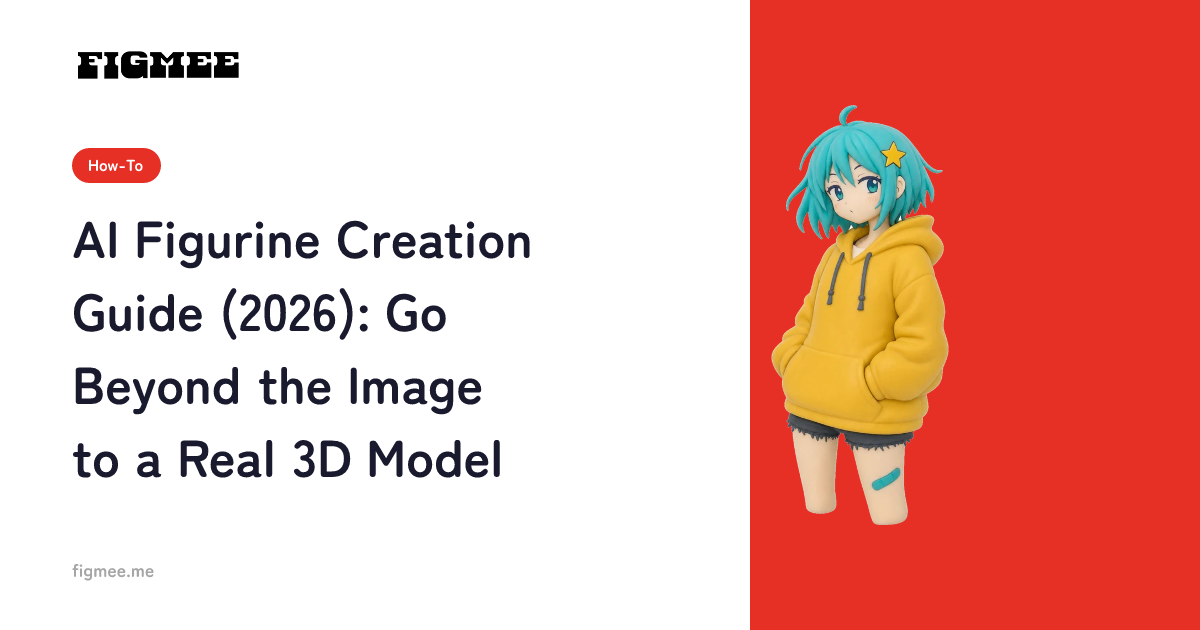
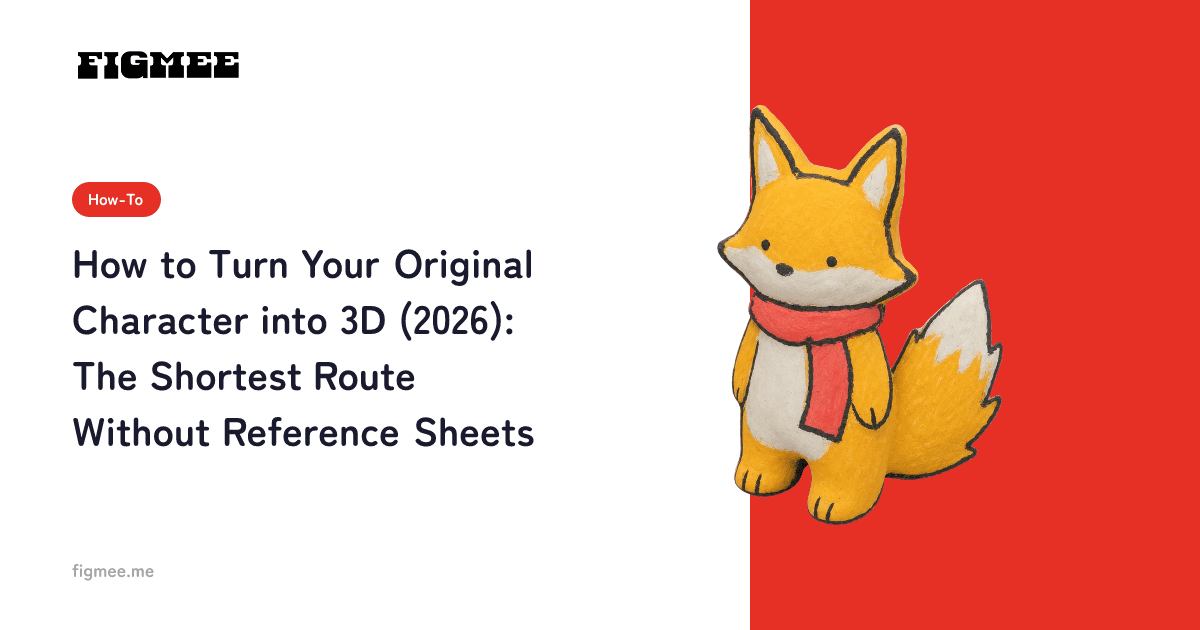
On the other hand, if your goal is to "see my character in three dimensions," "get a sense of merchandise or a prototype," or "first check whether it works as a solid form," you don't need reference sheets or modeling. With AI, you can create a figurine-style image and 3D model data from a single front-facing illustration.
Let's walk through the steps using Figmee as an example.
Step 1: Choose the illustration you want to 3D-ify (about 1 minute)
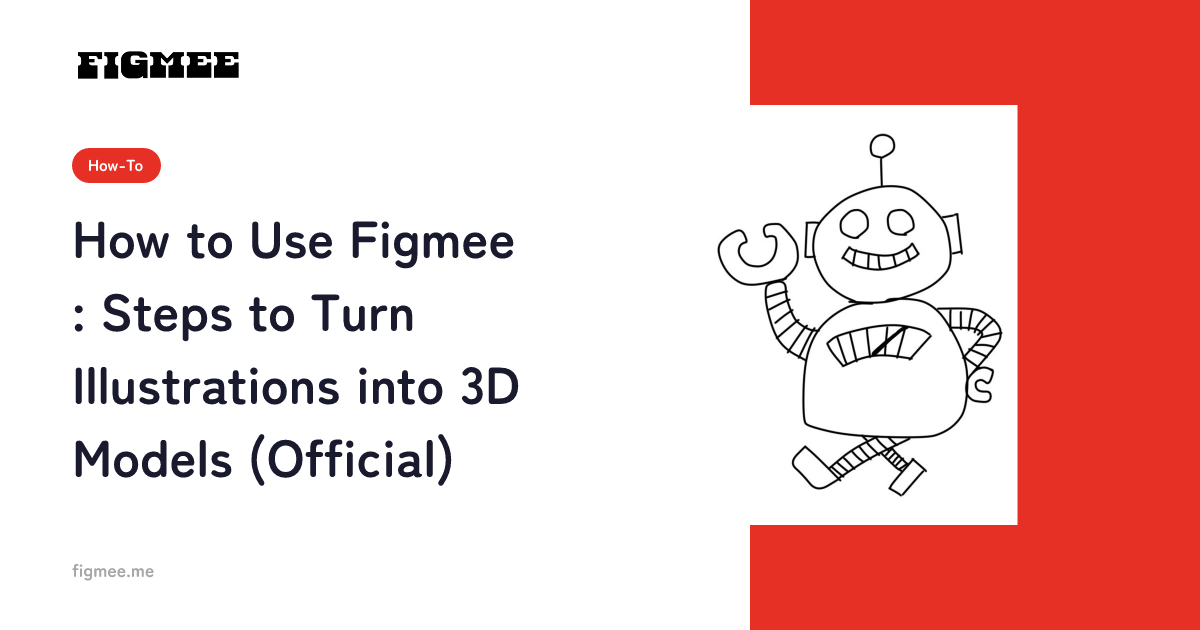
Prepare one image that shows the character from the front and full-body, with clear lines. It can be a hand-drawn illustration photographed with your phone, or a file drawn digitally.
Step 2: Upload it and generate a figurine-style image (about 1-2 minutes)
Go to figmee.me, sign up, and upload your illustration. The AI automatically converts it into a figurine-style image. There is no software to install, and everything is done in your browser.
Step 3: Check the result and adjust (about 1 minute)
Check whether the character's features and pose came out as you intended in the generated image. If something bothers you, you can re-photograph the original or try a different image.
Step 4: Generate the 3D model and download it (about 2-3 minutes)
Once you are happy with the image, generate the 3D model. You can inspect the solid form from all directions in a 360-degree view and download the data in GLB / 3MF format.
On pricing, figurine-style image generation is free for your first 5 times as a sign-up benefit (valid for 3 months from registration), and after that it is 550 yen for 5 credits. Generating a 3D model is 550 yen per model, and the GLB / 3MF download is included.
If you want a broader look at the flow from illustration to 3D, see the full guide on how to turn an illustration into 3D as well. Once the model exists, it also earns its keep as an illustration reference you can rotate and light, which is the quickest way to keep an original character on-model across a series.
Prep tips to improve 3D accuracy
Even though you can create it from a single illustration, a little preparation changes how stable the result feels. You don't need any special tools.
- Shoot in a bright place. When photographing a hand-drawn illustration with your phone, a bright environment such as natural light by a window makes it easier for the AI to read colors and lines.
- Shoot parallel to the paper, from directly above. Shooting at an angle introduces perspective distortion, which makes the shape more likely to break down when made solid.
- Keep the background simple. If the desk pattern or shadows get into the shot, the AI has a harder time telling the subject from the background. Placing it on plain paper or cloth keeps things stable.
- Decide in advance which features to keep. Putting into words the points you most want to preserve, such as 'this hairstyle,' 'this expression,' or 'this color,' makes it easier to judge whether the result is good.
These also help if you are looking ahead to 3D printing in the future. Thin parts and slender areas become easy to break once they are solid, so the clearer the 'shape you want to show' is at the illustration stage, the more stable the result.
Illustrations that suit 3D conversion, and the cases it struggles with
AI 3D conversion is not all-powerful. Some drawings suit it and some do not.
Conditions for a suitable illustration:
- Drawn from the front (or close to the front)
- The full body, or at least the upper body, is clearly contained in the frame
- The outlines are clear and the main subject is easy to read
- Only one character is drawn in the image
Let's be honest about the cases it struggles with, too:
- Extremely thin lines or parts as delicate as a single strand of hair tend to get crushed or omitted when made solid
- For a complex back view or areas not visible from the front, the AI fills in by guessing, so it may differ from your intent
- Images crowded with multiple characters make it hard to settle on a main subject
When it doesn't go well, rather than building in detail right away, the shortcut is to try a different image with a clear main subject.
Choose by purpose: do you want to animate it, or display it?
Which route you choose depends on what you ultimately want to do.
| Purpose | Suitable route | Notes |
|---|---|---|
| Animate it in a game or as a VTuber | Traditional route (reference sheet + modeling + rigging) | Animating requires a separate process such as bones or VRM |
| Learn character modeling | Traditional route (learning-focused) | High freedom, but takes time to master |
| Display or admire it as a solid form | AI shortest route | Check a 3D model in minutes from a single illustration |
| Get a sense of merchandise or a prototype | AI shortest route | Share and check the solid form with GLB / 3MF data |
| First check whether it becomes solid | AI shortest route | Test the idea at low cost |
Note that Figmee is a service that provides "figurine-style images plus 3D model data" suited for displaying and checking, and it does not support VRM or rigging (turning a character into an animatable avatar). If you want to animate a character, you will need a separate tool and process.
Frequently asked questions
Can I 3D-ify my original character without a reference sheet?
Yes. For displaying or checking purposes, you can generate a 3D model with AI from a single front-facing illustration. You don't need reference-sheet or modeling knowledge. That said, the AI fills in the back view that isn't visible from the front by guessing, so it may differ somewhat from your intent.
Can 2D illustrations be turned into 3D?
They can. Anime-style or illustration-style characters suit 3D conversion as long as the outlines are clear and the main subject is readable. If the lines are faint, re-photographing in a bright environment improves the accuracy.
Can I animate the character with the generated 3D model?
Figmee's 3D model data (GLB / 3MF) is for checking and sharing the solid form. It does not support rigging or VRM conversion for moving poses and expressions, so you will need a separate tool if you want to animate it.
Is it OK to 3D-ify official characters or someone else's character?
If you are going to share or commercialize the 3D version, you need to be careful about that character's rights. The premise is your own original character or original illustration that you hold the rights to. For licensed characters or fan works, check the rights holder's permission or the official guidelines.
Can I try it for free?
Yes. As a sign-up benefit, you can try figurine-style image generation for free up to your first 5 times (valid for 3 months from registration). You can first check the overall feel of the result with an image you already have, and then decide whether to move on to generating a 3D model (550 yen per model).
Summary
The trick to turning a character into 3D is to choose by purpose: the full route of reference sheets and modeling if you want to "animate," and the AI shortest route that starts from a single illustration if you want to "display or check." In 2026, it has become possible to check a solid form from one front-facing illustration without specialized knowledge.
To start, choose one image of your original character with a clear main subject, and check what it looks like as a solid form.