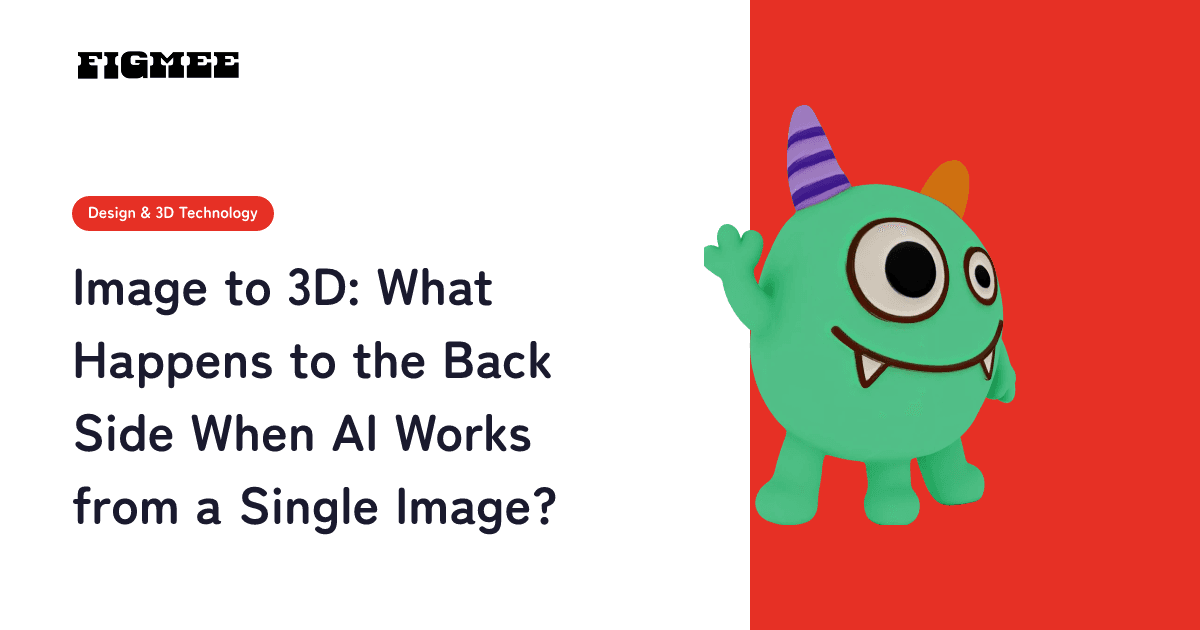
When AI turns a single drawing into 3D, the back side that isn't in the drawing is estimated: the AI combines the shapes and colors it can read from the front with what it has learned about shapes from large amounts of data. Because it's a guess rather than a measurement, the back can come out differently even when you upload the same drawing again and make it over, and it won't necessarily match how you imagine your character from behind.
Figmee also works from one drawing, and there's no way to upload several angles. This guide covers how the back gets built, what tends to go wrong with hair, clothes and accessories, how to check the back in your browser, how to steer it closer to your design, where character turnaround sheets fit in, and how to share your model without showing the back. For the related problem of the side you did draw changing, such as the face, see AI 3D Model Face Doesn't Look Like Your Character?
Note: Figmee currently offers figurine-style images created from your drawings, 3D model data (GLB / 3MF), and turntable videos of your 3D models. Ordering physical 3D prints is Coming Soon. Photos and images that look like photos can't be turned into 3D.
How is the back side created when you make 3D from one drawing?
The back is estimated by combining what the front of the drawing shows (outlines, colors, where parts sit) with the AI's learned sense of "what the back of something shaped like this usually looks like." Instead of leaving the undrawn areas empty, the AI fills them in, which is why one drawing can become a 3D model you can spin all the way around. The trade-off is that nothing guarantees the filled-in parts match your character's actual design.
Zero-1-to-3, a study on generating new viewpoints from a single image, frames this as an "under-constrained" problem, meaning the image alone doesn't settle the answer, and shows how to fill the gap using the geometric priors that large-scale image generation models learn from natural images (source: Zero-1-to-3: Zero-shot One Image to 3D Object (arXiv), March 2023). In plain terms: for anything the front doesn't show, the AI can only fall back on what's common.
In Figmee, your drawing first becomes a figurine-style image (labeled "3D image" on screen), and the 3D model is made from that image. The figurine-style image is still a single image, so the back is filled in when the 3D model is created. For the bigger picture of how images become 3D, see How Image-to-3D AI Works.
What tends to go wrong on the back?
The parts most likely to be off are the back of the hair, patterns or pieces on the back of the clothes, and anything worn on the back. Things whose outline you can see from the front, such as body thickness or the flare of sleeves and hems, are more likely to connect naturally from front to back. PAniC-3D, a study on reconstructing anime-style character heads in 3D, also lists the more complex and diverse shapes of hair and accessories in character illustrations, compared with photos of real heads, as a challenge (source: PAniC-3D: Stylized Single-view 3D Reconstruction from Portraits of Anime Characters (arXiv, CVPR 2023), March 2023).
| What the front shows | What gets filled in on the back | How likely it is to be off |
|---|---|---|
| Bangs and side hair | Length of the back hair, how it's tied, where the knot sits | High |
| Hair ends peeking out beside the shoulders or hips | Length and volume of the back hair | Medium |
| Color of the front of the outfit | Color of the back of the outfit | Medium |
| Patterns, logos, ribbons or hoods that exist only on the back | Nothing on the front hints at them, so they disappear or turn into something else | High |
| Things worn on the back (wings, backpacks, capes, tails) | The rest of what's visible from the front, plus the shape of the far side | High |
| Body outline and shoulder width | Thickness and curve of the back | Low |
| Toes of the shoes | Heels and soles | Medium |
These ratings are a rough guide based on how many clues the front of a drawing usually gives, not measured numbers. The back of an outfit may also end up close to a single color carried over from the front, or show something like the front pattern wrapping around. Why undrawn surfaces always become guesses is also covered in Why People Say Illustrations Can't Be Turned into 3D.
How do you check the back side?
In Figmee, you drag the finished 3D model around in the browser viewer to check the back. You can rotate it up and down as well as side to side, so you can stop at the direct back, a high angle or a low angle, and zoom in on the details.
- Open the work (about 1 min). From the menu at the top of the screen, go to "Gallery", open "Works", and pick a work that has a 3D model.
- Turn it around to see the whole back (about 1 min). Drag to rotate it halfway. The button in the bottom-right corner of the viewer starts auto-rotation, so you can watch a full turn hands-free.
- Stop at three angles and look at the details (about 3 min). Pause at the diagonal back, the side and a view from above. Zoom in with your mouse wheel or two fingers and check the length of the back hair, any knots, the back of the outfit, and where tails or wings attach.
- Change the brightness (about 1 min). Moving the brightness slider makes it easier to read colors and shapes in shadowed areas.
- Write down what doesn't match your design (about 3 min). Put the differences into words, like "back hair should reach the waist" or "the ribbon sits in the middle of the back." That list helps you pick a fix in the next section. (To keep an image of the direct back, you can use "Save reference sheet (4 views)".)
How can you get the back closer to what you intended?
There are two ways: put clues about the back into the front drawing, and start over by uploading the drawing again. Since you can only upload one drawing, though, there's no reliable way to communicate something the front never shows.
- Show clues within what's visible from the front. If the back hair is long, let the ends peek out beside the shoulders or hips. If there's a big ribbon or wings on the back, draw the parts that stick out past the body's outline.
- Draw the body turned slightly to one side. A slight three-quarter angle shows more of the side than a straight-on pose. The more the face turns, though, the less face information there is, so stay closer to front-facing if the face is your priority.
- Don't count on back-only patterns. Assume patterns or logos that don't appear at all from the front will either be missing or come out as something else.
- Start over. Each work can have only one 3D model, so to start over, upload the drawing again as a new work and go from the figurine-style image (1–3 tokens depending on quality) through to the 3D model (5 tokens). The result changes each time because it's an estimate, and once a generation completes, tokens aren't returned even if you don't like it.
If only the colors on the back are off, the coloring feature included with the monthly subscription can help. Use "Color this model" on the work page to paint directly on the 3D model and save it as a separate version from the original. To add or remove shape, import the GLB into 3D software such as Blender and edit it there; the steps are in Blender Remesh and Texture Editing Basics.
Will a turnaround sheet make the back accurate?
Figmee takes one drawing, and there's no separate slot for front, side and back views. If you upload a turnaround sheet as a single image, there's nothing that reads each view separately as the front, side or back. Because the picture shows several poses side by side, they will probably end up merged into one lump or partly left out. A turnaround sheet is more useful as reference for comparing the finished 3D model with your design, or as a guide when you fix the model in 3D software.
You can't use a turnaround sheet as input, but it works the other way around: you can save a turnaround-style image from the finished 3D model. On the work page, "Save reference sheet (4 views)" saves a single PNG showing the 3D model from the front, right side, back and left side without perspective distortion, and it uses no tokens. The back and sides in that image are shapes the AI filled in, so put it next to your own turnaround sheet and use it to spot what's different. Also, if the original drawing faces diagonally, the two side views may not come out as clean side-on views.
Settling the back design ahead of time also means you can tell at a glance what's different when you look at the model in the viewer. How to draw a turnaround sheet and use it alongside 3D is covered in How to Draw a Character Turnaround Sheet.
What if you don't want to show the back?
On a share link page, anyone viewing can rotate the 3D model freely, so the back is visible too. If the back doesn't match your design yet, or you'd rather not show it, stop the viewer at the angle you want, save the screen with your device's screenshot function, and share that image instead.
| How you share | Is the back visible? | Best for |
|---|---|---|
| Share link (publishing the work) | Yes, viewers can rotate it | When you want people to see the whole 3D form |
| Turntable video (about 6 seconds, 2 rotations) | Yes | Showing the 3D shape on social media |
| Screenshot of the viewer | Only the angle you choose | Showing depth without the back |
| Figurine-style image | Only the single front view | Sharing the mood of the artwork |
The share link page also shows the original illustration you uploaded next to the 3D model, which makes it clear to viewers that the front is your drawing and the back is the AI's estimate. What people can see once you publish, and how to unpublish, is explained in How to Publish a 3D Model Online. If you mention the back in a post, adding a short line like "the back was filled in by AI" helps avoid misunderstandings.
FAQ
If I draw a separate back view, can it be used for the back?
Figmee doesn't have a feature that combines a front view and a back view into one 3D model. If you upload only a back-view drawing, it will probably be treated as the visible side, and the face side will be the part that's estimated. Use your back-view drawing as reference to compare with the finished 3D model. How to draw the back view itself is covered in How to Draw a Character from Behind.
Does the back change every time I start over?
It can. The back is an estimate, so uploading the same drawing again and starting over won't necessarily give the same result. Each new attempt uses tokens, and once a generation completes, tokens aren't returned even if you don't like the result.
Can I regenerate just part of the back?
You can't change the shape of a 3D model or regenerate only part of it inside Figmee. Color differences can be repainted with the subscription's coloring feature. To fix the shape, import the GLB into 3D software such as Blender and edit it there.
Summary
When you turn one drawing into 3D, the AI builds the back from the front's information and what it has learned about shapes. The back of the hair, back-only patterns and things worn on the back are the most likely to be off, while parts with clues visible from the front, like the body outline, tend to connect more naturally. Check the finished model from the direct back, the diagonal back and above in the viewer, then either add clues to the front drawing and upload it again, repaint the colors, or fix the shape in 3D software. When you don't want to show the back, share a screenshot from a chosen angle instead of a share link.
For the full process of turning illustrations into 3D, see the Illustration to 3D Guide. Try a drawing where the ends of the back hair or a bit of what's on the back peeks out from the front, and see how the AI fills in the rest.