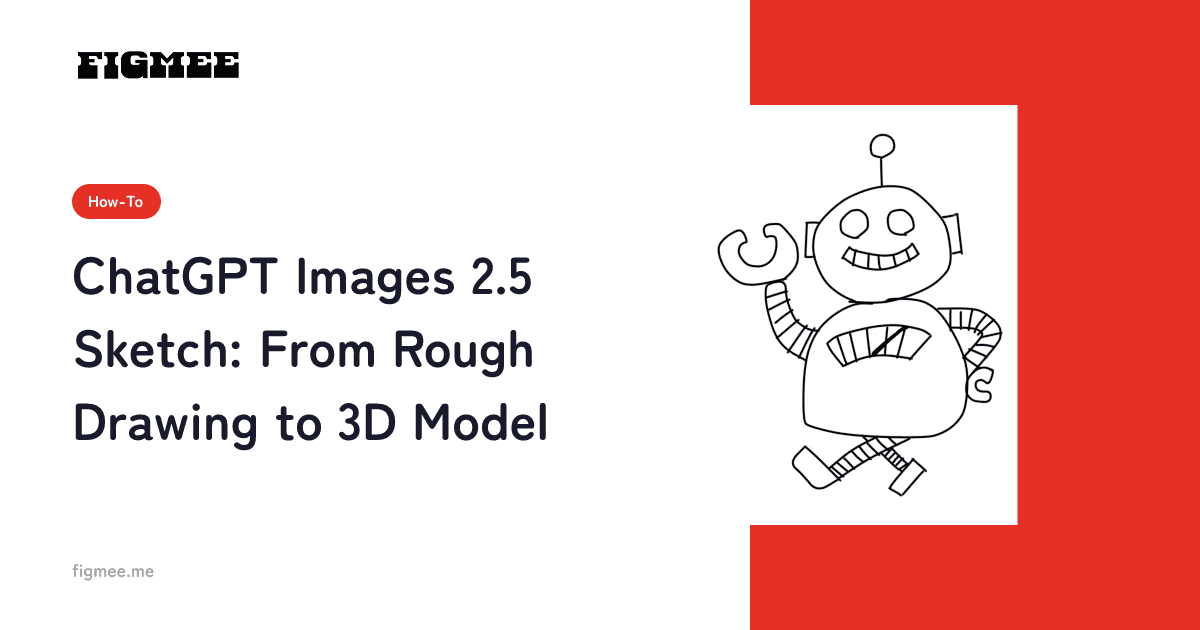
ChatGPT Images 2.5 is the image model OpenAI released on September 8, 2026. Its new Sketch feature lets you draw a rough right in the ChatGPT app and have ChatGPT turn it into a finished image. If what you really want is a 3D model of your character, you can work in two stages: clean up the rough in ChatGPT, then take that one image to Figmee to get a figurine-style image and a 3D model (GLB / 3MF).
This guide covers what changed in Images 2.5, how to use Sketch, how to write instructions that keep your hand-drawn lines, how to turn the cleaned-up drawing into a 3D model, and the rights and terms to keep in mind. Everything said here about ChatGPT reflects OpenAI's official announcement and help pages as of September 28, 2026.
Note: Figmee currently offers figurine-style images created from your drawings, 3D model data (GLB / 3MF), and turntable videos of your 3D models. Ordering physical 3D prints is Coming Soon.
What's new in ChatGPT Images 2.5
According to OpenAI, Images 2.5 improves detail, editing precision, and speed, and it ships alongside new ChatGPT features such as Sketch. The highlights:
| Item | What OpenAI announced |
|---|---|
| Release date | September 8, 2026 |
| Quality and editing | More natural lighting and richer textures, better at keeping the subject of a reference photo, and more reliable at following edits across multiple turns |
| Speed | Up to 50% lower latency than Images 2.0 |
| Sketch | Draw directly in ChatGPT and use the drawing as a visual reference for the final image |
| Templates | Start from popular formats such as posters or merch |
| Comment-based edits | Place comments directly on an image to point out what should change |
| Prompt sharing | Choose whether to include the prompt when you share an image |
| Who can use it | ChatGPT, ChatGPT Work, and Codex users on all plans, across desktop, mobile, and web |
| Provenance | C2PA metadata and an invisible watermark help identify images made with OpenAI's tools |
Source: OpenAI, "Introducing ChatGPT Images 2.5" (September 8, 2026)
OpenAI's help center says ChatGPT Images is available on all tiers and on web, iOS, and Android (Images in ChatGPT). The release notes for the same date add that existing image-generation limits are unchanged and that templates aren't yet available in Work mode (ChatGPT Release Notes). These details can change, so check OpenAI's help center before you rely on them.
How to use Sketch in the ChatGPT app
OpenAI's help center and release notes describe Sketch as a feature of the ChatGPT mobile app. Here are the steps from the help center:
- Open Sketch: type "@" in the message box and select "Sketch".
- Draw your rough: draw directly on the screen. Before you continue, you can pick a color, erase parts of the drawing, or undo a stroke.
- Confirm: tap the checkmark when you're done.
- Add instructions: describe the image you want ChatGPT to create from your sketch. The help center suggests including details such as the subject, colors, or style.
- Send and generate: generation can take a few minutes, depending on how complex your request is.
- Refine and save: keep asking for changes in the conversation. When you're happy, open the image and select "Save" to download it to your device.
The help center's example is to sketch a house and write "Turn this sketch into a watercolor painting of a red house surrounded by trees." For a character rough, it's worth spelling out what must stay and what may change, as in the prompts in the next section.
If your rough is on paper or on your computer
If you already have a rough on paper or in a drawing app, you don't need to redraw it in Sketch. Attach the image and describe the change you want — the help center confirms you can upload an existing image and ask ChatGPT to edit it. The help center doesn't describe using Sketch in a desktop browser, so on a computer, go this route.
Prompts that keep your hand-drawn lines
When you hand a rough to AI for clean-up, the lines can come back uniformly smoothed, or the eye shape and proportions can drift toward a different art style. To keep your character recognizable, separate what to keep from what may change in your instructions, and name the finished style.
- Keep: facial features (eye shape and placement), head-to-body ratio, hairstyle, outfit shapes, anything asymmetrical
- May change: broken or doubled lines, strokes that run over, the coloring
- Style: finish it as an illustration — line art with flat colors, anime style, watercolor, and so on. No photographic textures or photorealism
- Composition: one character, full body, facing roughly forward, plain background
The last two also matter for the 3D step (more on that below).
Prompt 1: tidy the lines only
Clean up the lines in this rough into single, clean strokes, keeping their position and the variation in thickness. Don't change the eye shape, proportions, hairstyle, or outfit shapes. Leave it uncolored, on a white background.
Prompt 2: add flat colors
Turn this rough into line art with flat colors. Keep the eye size, the face outline, and the asymmetrical hairstyle exactly as they are in the rough. Full body, facing forward, white background. No photographic textures and no detailed shading.
Prompt 3: pull it back when it's over-polished
The lines are too polished and it looks like a different character. Go back to the eye shape and mouth position from the first rough. Don't add any outfit details, and keep everything else as it is now.
If the first result misses, fixing one specific difference at a time will likely preserve the rest better than regenerating everything — OpenAI says Images 2.5 keeps earlier changes more consistently across multiple edits. You can also select part of an image to edit, but the help center notes that highlights aren't always precise and edits may extend beyond the selected area, so check the whole image after each fix.
For more prep tips that make a character easier to turn into 3D, see How to Turn Your Original Character into 3D.
Turning the cleaned-up drawing into a 3D model with Figmee
In Figmee, the cleaned-up image becomes a figurine-style image, and that becomes a 3D model. There's nothing to install — everything runs in the browser.
- Save the cleaned-up image: open it in ChatGPT and select "Save" to download it. Figmee accepts PNG, JPEG, and WebP, up to 20 MB per image.
- Upload, pick a quality, and generate: upload the image to Figmee, choose Standard, Pro, or Max, and press "Generate 3D Image" to get a figurine-style image. It usually takes about 2–3 minutes.
- Check the result: see whether the facial features and the feel of your lines survived. If not, press "Regenerate", or go back to the clean-up stage and try another version.
- Generate the 3D model: once you're happy with the image, press "Generate 3D Model". You can spin the finished model 360° in the browser.
- Save and share: from your work's page, you can save the data as GLB / 3MF. "Create 360° video" also exports a square video in which the model turns twice in about 6 seconds.
On pricing: new accounts receive 5 free tokens as a sign-up bonus (valid for 3 months after registration, only for the first registration with a given email address). A figurine-style image costs 1–3 tokens depending on the quality, and a 3D model costs 5 tokens — your first 3D model is free, once per account. You can buy 5 more tokens for $5.99. Saving data and exporting turntable videos don't use tokens.
You write the prompt in ChatGPT, not in Figmee
In ChatGPT, you write the instructions yourself. Figmee's figurine-style image and 3D model generation has no prompt field: it uses instructions that Figmee has prepared. So do all the "keep these features" work during the clean-up, and hand Figmee the finished image.
Why the clean-up shouldn't look like a photo
Figmee turns drawings into 3D images: drawings on paper (including photos or scans of them) and digital illustrations. Photos of real people or objects, and images that look like photos, aren't supported. If an image is judged to be a photo, generation stops with the message "Photos are not supported. Please upload a hand-drawn illustration." and the tokens you used are returned automatically. An image you asked ChatGPT to make "realistic" or "photorealistic" may be judged a photo, so keep the clean-up in an illustration style.
If you'd rather make a figurine-style image with Gemini first, see How to Make Figurine-Style Images with Nano Banana.
Clean it up first, or upload the rough as is?
Cleaning up in ChatGPT is optional. Here's a rough guide based on the state of your drawing:
| Your rough | What to do | Why |
|---|---|---|
| Clear lines, already colored | Skip the clean-up and upload it to Figmee as is | Fewer passes through AI likely means fewer chances for your lines to be redrawn |
| Faint pencil lines, or many overlapping strokes | Tidy the lines into single strokes in ChatGPT first | A clear outline makes the shape easier to read |
| Line art only, no color | Add flat colors in ChatGPT first | Line art alone can be generated, but without color or shading the shape estimate tends to be less stable |
| Pose and composition not settled | Draw a few versions in Sketch and compare | Only the one image you choose goes to 3D, so settling the composition first makes choosing easier |
| You want a photographic finish | Don't go photographic | Figmee can't turn photos or photo-like images into 3D images |
Either way, the drawings that are easiest to turn into 3D show one character, full body, facing roughly forward, with a clear outline. Several overlapping characters, strong low or high angles, see-through materials, and small text tend to be hard to reproduce in 3D. For more on what works and what doesn't, see How to Turn an Illustration into 3D.
Rights and terms to keep in mind
Before you clean up and convert, here's what OpenAI's terms and public guidance on generative AI and copyright say. All of it reflects what was published as of September 28, 2026, and copyright law differs by country and region.
- Start from your own drawings and original characters: OpenAI's Terms of Use prohibit using the services in a way that infringes anyone's rights, and you represent that you have the rights needed for your input. (Users in the EEA, Switzerland, and the UK are covered by the Europe version, which contains the same points.) In Japan, the General Understanding on AI and Copyright, compiled by a subcommittee of the Cultural Council under the Agency for Cultural Affairs (full text in Japanese, March 15, 2024; English overview) says that if a user who knows an existing work feeds that work itself into an AI as an image (Image to Image) and generates something containing its creative expression, reliance is recognized and infringement is considered established. Don't upload other people's illustrations or images of copyrighted characters — start from a rough you drew.
- Who owns the output: the same terms say that, as between you and OpenAI and to the extent permitted by law, you retain ownership of your input and own the output. They also note that output may not be unique and other users may receive similar output.
- Is the cleaned-up image protected by copyright? Under Japan's General Understanding, whether AI-generated material is a copyrighted work is decided case by case. Detailed instructions that specifically indicate creative expression, and repeated attempts in which you check the output and revise your instructions, are taken into account; merely selecting from several outputs is not. Creative additions or corrections a person makes to the output are generally considered copyrighted works. (The document itself is not legally binding.) The U.S. Copyright Office's report on copyrightability (January 2025) says that where a person inputs their own copyrightable work and it is perceptible in the output, they are the author of at least that portion — though protection doesn't extend to the AI-generated elements on their own. A clean-up that keeps your lines may also make it easier to show which parts are your own expression.
- When you publish: OpenAI's terms prohibit representing output as human-generated when it wasn't. Images made with ChatGPT carry C2PA metadata and an invisible watermark that identify them as made with OpenAI's tools. If you enter a contest or event with rules on AI, read those rules first.
For how rights work when you publish or sell a 3D version — fan art, commissioned characters, art based on AI-generated images, and more — see our copyright and commercial-use guide for original characters in 3D.
Frequently asked questions
Is ChatGPT Images 2.5 free to use?
OpenAI's help center says ChatGPT Images is available on all tiers, and the release notes say existing image-generation limits didn't change with Images 2.5 (as of September 28, 2026). Plan conditions can change, so check OpenAI's help center.
Can I use Sketch on a computer?
As of September 28, 2026, OpenAI's help center and release notes describe Sketch as a mobile-app feature and don't explain how to use it in a desktop browser. On a computer, attach your rough as an image and describe the changes in text.
Can ChatGPT alone make a 3D model?
What OpenAI's announcement and help center describe is creating and editing images; they don't mention exporting 3D model data. If you want a 3D model you can spin around, take the cleaned-up image to a 3D service such as Figmee.
What should I watch for when uploading the cleaned-up image to Figmee?
Use PNG, JPEG, or WebP, up to 20 MB per image. Photo-like images can't be turned into 3D images, so keep the clean-up in an illustration style. One character, full body, facing roughly forward is the easiest to convert.
Can I clean up a rough of a copyrighted character and turn it into 3D?
Figmee accepts only drawings you made yourself or images the rights holder has allowed you to use. If you're starting from a copyrighted character, check the rights holder's guidelines and make sure you have permission. The safest choice is an original character whose rights you hold.
Can I get a physical version of the 3D model?
Ordering physical 3D prints from Figmee is Coming Soon and isn't available yet. You can use the saved 3MF data with your own 3D printer or with a print service that accepts 3MF files, but whether it prints as-is, and how faithfully colors and fine shapes are reproduced, depends on the printer and software.
Summary
Sketch in ChatGPT Images 2.5 turns a rough you draw in the app into a finished image. To get a 3D model of your character, tell ChatGPT what to keep and what may change, keep the clean-up in an illustration style, and then turn that one image into a figurine-style image and a 3D model with Figmee. If your rough already has clear lines, you can skip the clean-up and take it straight to 3D.