3D modeling vocabulary becomes much easier to handle once you sort it into six groups: shape, surface, motion, files, techniques and tools. A mesh, for example, is "a net-like outer shell built by joining lots of small faces," a texture is "an image wrapped onto the surface of a 3D object," and GLB is "an easy-to-share 3D format that packs shape and color into a single file." This article is a beginner-friendly glossary of 50 of these tricky terms, each broken down with an analogy or plain rewording into a single, friendly line you can look up one at a time. You can read it from top to bottom or just jump to the words you are curious about.
Note: Figmee currently lets you upload a drawing or illustration and generate and download figurine-style images and 3D model data (GLB / 3MF). Sales of physical 3D-printed items are Coming Soon.
The world of 3D throws one piece of jargon and one acronym after another at you, and at first it is easy to get stuck at the language barrier. Yet once each term is translated into an everyday analogy, the idea behind it often turns out to be surprisingly simple. We recommend keeping this glossary open next to you and looking things up whenever an unfamiliar word appears.
① Shape basics
These are the most fundamental words for describing the "shape" of a 3D object itself.
| Term | One-line explanation |
|---|---|
| 3D model | Data that represents a three-dimensional object on a computer. The finished 3D piece itself. |
| Mesh | A net-like outer shell made by joining many small faces together. |
| Polygon | A small triangular or four-sided face that forms part of an object's surface. |
| Vertex | A point at the corner of a face. The reference point that defines the object's shape. |
| Edge | A line connecting two vertices. The side that marks the border between faces. |
| Face | A single flat surface enclosed by vertices and edges. Many of them together form the surface. |
| Normal | Direction data showing which way a face is pointing. It affects how light hits the surface. |
| Wireframe | A skeleton-like view that shows the object only by its edges, without filling in the faces. |
| Topology | The arrangement and flow of faces and edges. Clean topology makes editing and deforming easier. |
Learn more: For how a 3D model is put together in the first place, see What Is a 3D Model? How It Works and How It's Made, Explained Simply. For what the number of faces actually means, see What Is Polygon Count? What Changes with More or Fewer?.
② Appearance and surface
These words describe how color and a sense of material are wrapped around a shape so it looks convincing.
| Term | One-line explanation |
|---|---|
| Texture | An image applied to the surface of an object. Think of it as a sticker carrying patterns and color. |
| Material | The surface settings. They decide how a material such as metal or plastic looks. |
| UV | Flat, two-dimensional coordinates that show where a texture should be placed. |
| UV unwrapping | Cutting open an object's surface and laying it out flat so an image can be applied to it. |
| PBR | A system that makes light reflection behave close to real physics, so materials look realistic. |
| Shader | A program that calculates a surface's color and shine and draws it on screen. |
| Rendering | The process of computing 3D data and drawing it out as a 2D image or video. |
| Base color | The basic color of a material. The color information that serves as the foundation of a texture. |
| Normal map | An image that fakes bumps by changing the direction of faces. It makes few faces look highly detailed. |
Learn more: What color and surface feel really are is covered in What Is a Texture? How 3D Surfaces Get Their Look, which also explains how much a single image can change the way a model looks.
③ Motion
These words are about giving a still object "joints" and "movement."
| Term | One-line explanation |
|---|---|
| Rigging | Building bones and controls into an object so that it can be moved. |
| Bone | A framework placed inside the object. The reference that bends and moves like a joint. |
| Skinning | Binding the surface (the mesh) to the bones so it moves along with them. |
| Weight | A setting for how strongly each vertex follows each bone. |
| Animation | Changing shape or position over time to create movement. |
| Keyframe | A key pose that marks a turning point in the motion. The software fills in the frames between them automatically. |
| Morph | A system that deforms the shape itself. Used for things like changing facial expressions. |
Learn more: The groundwork for making a model move is explained in What Is Rigging? The Basics of the Skeleton That Moves a 3D Model, including the points where beginners tend to stumble.
④ Files and data
These are the words around file extensions, used when you "save a 3D object and hand it to someone else."
| Term | One-line explanation |
|---|---|
| GLB | An easy-to-share 3D format that packs shape, color and motion into one file. |
| glTF | A common 3D format designed for the web. GLB is its single-file version. |
| OBJ | A classic, long-established 3D format. Great for moving data between programs. |
| FBX | A format that can also carry color and motion. Widely used in game and animation production. |
| STL | The standard 3D printing format that stores shape only. It cannot hold color. |
| 3MF | A newer 3D printing format that can also store color and print settings. |
| Export | Writing out the data you made in a specified format. |
| Import | Loading an external file into a program. |
| Binary | A storage format compressed for machines rather than human-readable text. Light and fast. |
Learn more: Which file extension to choose and when is laid out by use case in 3D File Formats Compared: When to Use GLB, OBJ, FBX and STL.
Sources: glTF is a free, open standard developed by the Khronos Group (Khronos glTF official site, as of July 2026). 3MF is a full-color 3D printing standard developed by the 3MF Consortium (3MF Consortium official site, as of July 2026).
⑤ Techniques and methods
These are the names of tasks you perform when you "create and refine" a 3D object.
| Term | One-line explanation |
|---|---|
| Modeling | The overall work of building an object's shape. The entry point to 3D creation. |
| Sculpting | A method of shaping an object on screen by adding and carving away material, as if kneading clay. |
| Retopology | Rearranging the faces to rebuild the model as a mesh that is easier to work with. |
| Low-poly | A light object with few faces. It runs smoothly and suits games. |
| High-poly | A detailed object with many faces. It allows fine detail, but is heavy. |
| Decimate | A process that reduces the number of faces to lighten a model while keeping its look. |
| Smooth shading | A display method that makes the borders between faces look smooth and hides jagged edges. |
| Subdivision | A method that splits faces into smaller ones to make the shape smoother. |
Learn more: The balance between "lightness" and "detail" is explained, along with rules of thumb for choosing, in Low-Poly vs. High-Poly: Which Should You Use?.
⑥ Tools and related words
These are the "tools" for working with 3D, plus words you will hear around them.
| Term | One-line explanation |
|---|---|
| Blender | A popular 3D creation program you can use for free. Handy for editing and exporting. |
| Viewer | A display tool for opening 3D data and rotating it to look around. |
| Game engine | Base software for building games and video. It loads 3D models and makes them move. |
| Photogrammetry | A technique that reconstructs a 3D object from many photos. |
| 3D scanning | A technique that captures a real object with a device and turns it into 3D data. |
| AI generation (image-to-3D) | A technique where AI infers and builds a 3D model from a single image. |
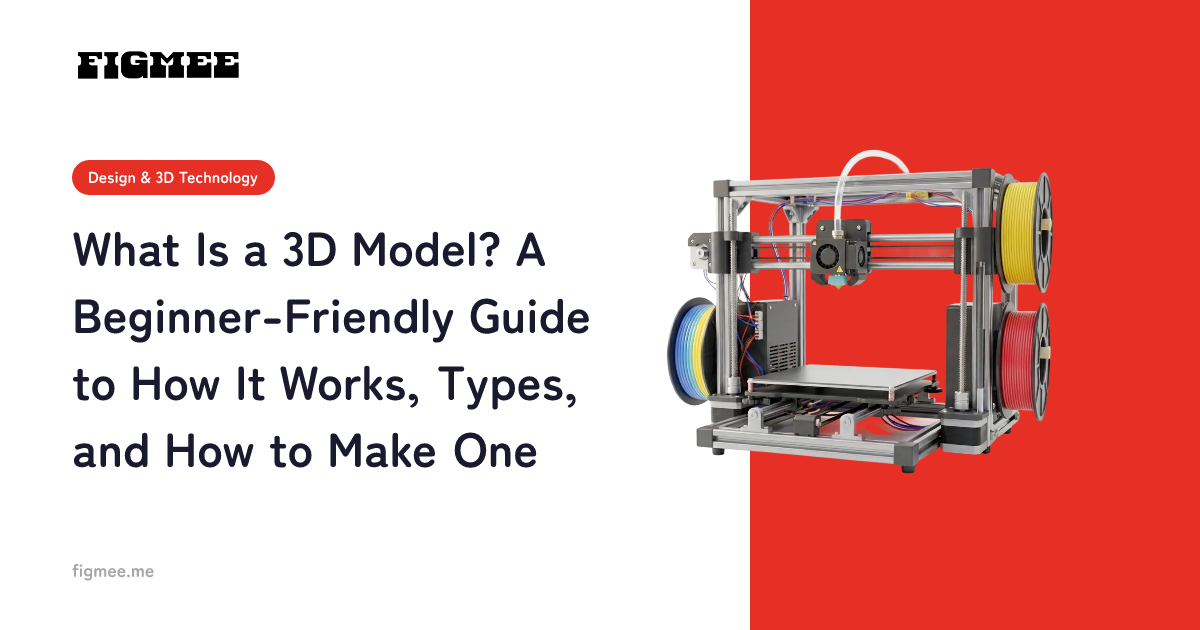
| 3D printing | A technique that outputs a physical object by stacking layers of resin or other material based on 3D data. |
| Viewport | The work area in 3D software where you display and manipulate objects. |
Learn more: How to open and rotate your 3D data for free is explained in How to View 3D Models for Free: Opening Them in Your Browser or an App, and how a 3D object can be created from an image is covered in How AI Turns an Image into a 3D Model. The copyright and commercial-use rules to know when publishing or selling a 3D model you made are summarized in 3D Model Copyright and Commercial Use: The Basics.
⑦ You can start 3D without knowing the terms
After reading through 50 terms, you may feel there is a lot to memorize. In practice, though, you do not need to know all of them from the start to begin making things.
With Figmee, you simply upload an illustration or drawing you already have (for drawings on paper, a photo or scan is fine). The AI generates a figurine-style image and then automatically builds a 3D model from it. You do not need to install dedicated software, operate Blender, or do specialist tasks like UV unwrapping yourself (what you get is static shape-and-color data, and rigging is not included). You can check the finished 3D model right in your browser by rotating it a full 360°, and download it in GLB or 3MF format.
In other words, you can "try making something first" and pick up the vocabulary little by little along the way. As you open an exported GLB and look at what is inside, the words in this glossary will start to click naturally. (Sales of physical 3D-printed items are Coming Soon.)
Frequently asked questions
Do I need to memorize every 3D term?
No. This article is not a "list for memorizing" but a "glossary to look things up in when an unfamiliar word appears." In actual creation, you can make good progress once you have a rough idea of basic words like mesh, texture and GLB. The rest will stick if you look them up when you need them.
Why are there so many English words and acronyms?
Much of 3D software and many file formats were born and developed in English-speaking communities, so their names are used as-is around the world. Many of the concepts are also hard to translate, and forcing a translation often makes them harder to understand, so the industry has settled on the original terms. This glossary explains those words by swapping them for everyday analogies.
When will I actually come across the words in this glossary?
They appear in situations such as downloading a GLB, opening it in a viewer to check it, or importing it into Blender to make changes. Knowing even a one-line meaning for each word makes it much easier to understand the buttons and menus you see on screen.
Summary
There are a lot of 3D modeling terms, but they can all be organized into six groups: shape, surface, motion, files, techniques and tools. A mesh is a net-like outer shell, a texture is a sticker on the surface, rigging is the skeleton that lets a model move. Once you translate each term into an analogy like this, the wall of jargon becomes much lower.
What matters is not memorizing everything before you start, but keeping a reference within reach and getting your hands moving. With Figmee, you can experience everything from upload and AI generation to 360° checking in your browser in one go, without any jargon. Try making something, and whenever you hit a word you do not know, come back to this glossary.